Fluent Forms Effects Engine
Overview
The effects engine lets you define reactive side-effects that automatically respond to form value changes.
Main use cases:
- Automatically clear/set field values when another field changes
- Copy values between fields
- Execute server-side scripts on value changes
- Complex form logic without writing JavaScript
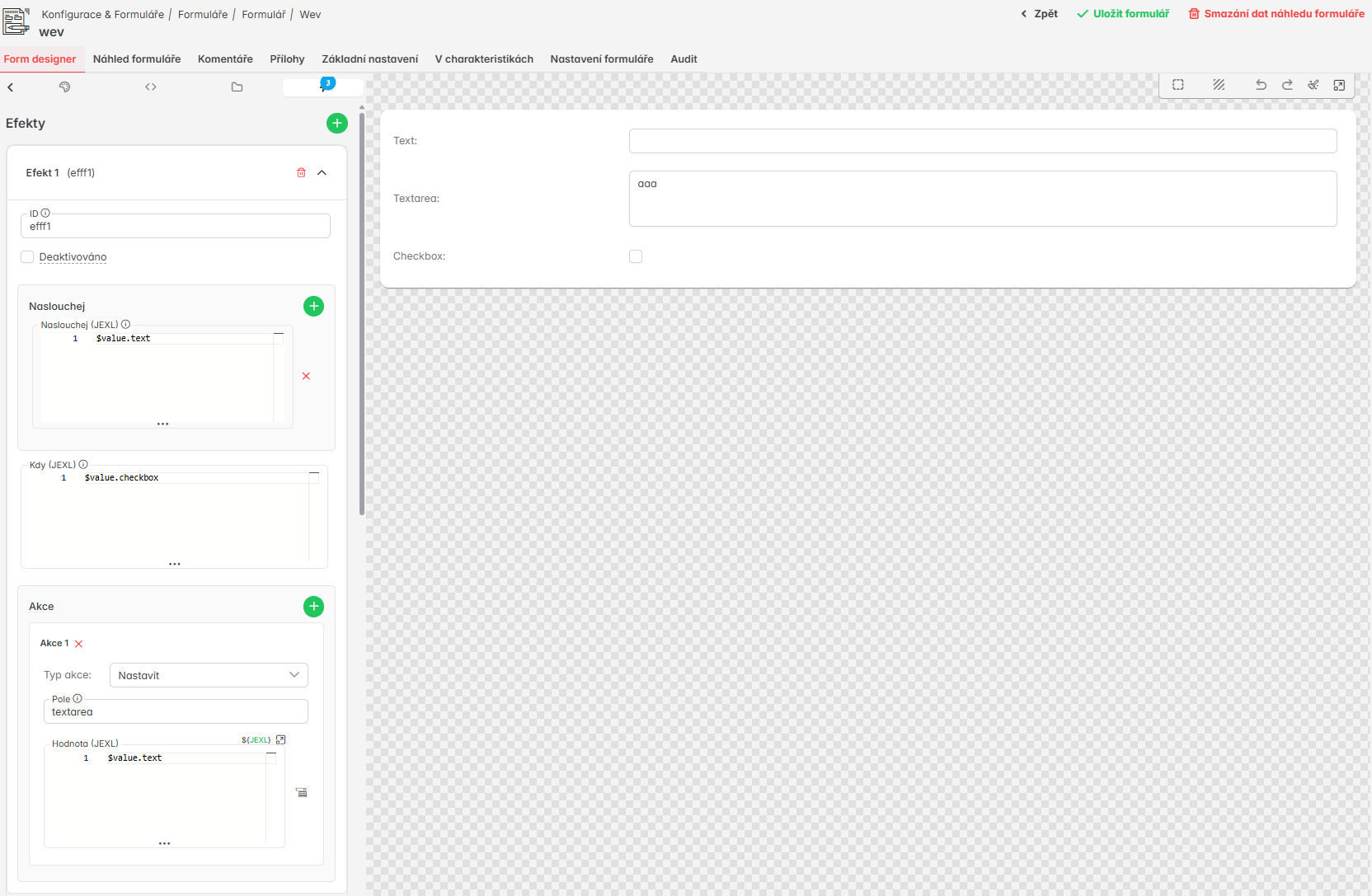
Basic Structure
Effects are defined in the JSON schema at the root level using the effects property:
{
  "type": "object",
  "properties": {
    "checkbox": { "type": "boolean" },
    "text1": { "type": "string" },
    "text2": { "type": "string" }
  },
  "layout": ["checkbox", "text1", "text2"],
  "effects": [
    {
      "id": "my-effect",
      "listen": ["${$value.text1}"],
      "when": "${$value.checkbox == true}",
      "do": [
        { "type": "set", "field": "text2", "value": "${$value.text1}" }
      ]
    }
  ]
}
Effect Object Structure
| Property | Required | Type | Description |
|---|---|---|---|
id | No | string | Identifier for debugging and logging |
listen | Yes | string[] | JEXL expressions whose output value is watched — the effect triggers whenever a result of any of these expressions changes (for example, "${$value.text1}") |
when | No | string | Condition (JEXL expression). If omitted, effect always executes |
do | Yes | EffectAction[] | Array of actions to execute when condition is met |
Action Types (EffectAction)
1. CLEAR - Clear/Reset Field Value
Clears a field value. The mode controls what happens after the value is removed. If mode is not specified, empty is used.
Mode empty (default) — Simply wipes the value (sets it to null/[]/{}). The field is marked as "dirty", meaning any schema default will not be applied. Use this when you just want to blank out the field with no further behavior:
{
  "type": "clear",
  "field": "text1",
  "mode": "empty"
}
Mode unset — Removes the value and marks the field as "pristine" (as if the user never touched it). The field is then open to receiving its default value again — but only if the default expression produces a new value in the future (e.g. when another field it depends on changes). Use this when you want to "undo" a user's input and let the form's default logic take over again passively:
{
  "type": "clear",
  "field": "text1",
  "mode": "unset"
}
Mode reset — Same as unset, but also immediately re-applies the schema default right away, without waiting for anything to change. If the field has a default value or default expression defined, it is evaluated and set instantly. Falls back to stored control defaults if no schema default exists. Use this when you want the field to snap back to its default value on the spot:
{
  "type": "clear",
  "field": "text1",
  "mode": "reset"
}
unset vs resetBoth modes mark the field as pristine and allow defaults to be applied again. The difference is when:
unset— waits; the default is applied only if it changes later (reactive)reset— acts immediately; the default is applied right now
2. SET - Set Value with Expression
Sets field value using an evaluated expression:
{
  "type": "set",
  "field": "text2",
  "value": "${$value.text1.toUpperCase()}"
}
Properties:
field- field path (for example, "text1", "nested.field", "array.0.item")value- JEXL expression that will be evaluated and its result set as field value
Expression Examples:
// Static value
{ "type": "set", "field": "status", "value": "\"active\"" }

// Copy value
{ "type": "set", "field": "text2", "value": "${$value.text1}" }

// Transform value
{ "type": "set", "field": "upper", "value": "${$value.text1.toUpperCase()}" }

// Conditional expression
{ "type": "set", "field": "label", "value": "${$value.active ? 'Active' : 'Inactive'}" }

// Complex calculation
{ "type": "set", "field": "total", "value": "${$value.quantity * $value.price}" }
3. COPY - Copy Value
Copies value from one field to another (including deep clone for objects/arrays):
{
  "type": "copy",
  "from": "sourceField",
  "to": "targetField"
}
Properties:
from- source field pathto- target field path
Note: Copying creates a deep clone, so modifying the copied value does not affect the original.
4. SCRIPT - Execute Server-Side Script
Executes a server-side script with success/error action handling:
{
  "type": "script",
  "scriptCode": "notify_user_status_change",
  "scriptData": {
    "userId": "${$value.userId}",
    "status": "${$value.status}"
  },
  "hideScriptError": false,
  "successActions": [
    {
      "action": "SHOW_NOTIFICATION",
      "actionData": { "message": "Status updated" }
    }
  ],
  "errorActions": [
    {
      "action": "SHOW_ERROR",
      "actionData": { "message": "Update failed" }
    }
  ]
}
Properties:
| Property | Required | Type | Description |
|---|---|---|---|
scriptCode | Yes | string | Script code to execute |
scriptData | No | string | JEXL expression for script payload (evaluated before execution) |
hideScriptError | No | boolean | Whether to hide script errors from user (default: false) |
successActions | No | StoreAction[] | NgRx store actions to dispatch on successful script completion |
errorActions | No | StoreAction[] | NgRx store actions to dispatch on script error |
successDo | No | EffectAction[] | Effect actions to execute on success, with $response available in expressions |
errorDo | No | EffectAction[] | Effect actions to execute on error, with $response available in expressions |
Important:
- Script executes asynchronously and does not block the effects pipeline
- Script action always returns
trueimmediately (does not wait for script completion) - Script results do not trigger additional effect iterations
- Success/error actions are handled automatically by FormActionsService
successDo / errorDo
successDo and errorDo allow you to execute effect actions (SET, CLEAR, COPY) after a script completes, with access to the script response via the $response variable. Unlike successActions/errorActions (which dispatch NgRx store actions), successDo/errorDo work directly with form field values.
{
  "type": "script",
  "scriptCode": "calculate_price",
  "scriptData": { "productId": "${$value.productId}" },
  "successDo": [
    { "type": "set", "field": "price", "value": "${$response.calculatedPrice}" },
    { "type": "set", "field": "discount", "value": "${$response.discount}" },
    { "type": "clear", "field": "errorMessage" }
  ],
  "errorDo": [
    { "type": "clear", "field": "price" },
    { "type": "set", "field": "errorMessage", "value": "${$response.message}" }
  ]
}
The $response variable:
- Contains the parsed
response.datafrom the script API response - Available in expressions within
successDo/errorDoactions (specifically in thevalueproperty of SET actions) - All standard expression variables (
$value,$context,$config, ...) remain available alongside$response
Expression examples:
${$response}                        // entire response data
${$response.price}                  // nested property
${$response.items[0].name}      // optional chaining
Supported action types in successDo / errorDo:
| Type | Supported | Note |
|---|---|---|
set | Yes | $response available in the value expression |
clear | Yes | Works the same as in regular do |
copy | Yes | Works the same as in regular do |
script | No | Nested SCRIPT actions are blocked to prevent recursion |
Execution order:
- Script is called via API
successActions/errorActions(StoreAction[]) are dispatched as NgRx actionssuccessDo/errorDo(EffectAction[]) are executed with$responsein the expression context
Combining with existing properties:
successDo/errorDo and successActions/errorActions can be used together:
{
  "type": "script",
  "scriptCode": "validate_data",
  "successActions": [
    { "action": "SHOW_TOAST", "actionData": { "severity": "success" } }
  ],
  "successDo": [
    { "type": "set", "field": "validated", "value": "${true}" }
  ]
}
Expressions
All expressions in effects (listen, when, do values, etc.) are standard JEXL expressions with the same evaluation context available as in other form scripting scenarios. See Frontend Scripting with JEXL for the full reference of available variables, functions, and transforms.
Complete Examples
Example 1: Auto-clear field when checkbox changes
{
  "effects": [
    {
      "id": "clear-text-when-disabled",
      "listen": ["${$value.enableText}"],
      "when": "${$value.enableText == false}",
      "do": [
        {
          "type": "clear",
          "field": "textField",
          "mode": "unset"
        }
      ]
    }
  ]
}
Example 2: Synchronize fullName when first/last name changes
{
  "effects": [
    {
      "id": "update-fullname",
      "listen": ["${$value.firstName}", "${$value.lastName}"],
      "do": [
        {
          "type": "set",
          "field": "fullName",
          "value": "${($value.firstName || '') + ' ' + ($value.lastName || '')}"
        }
      ]
    }
  ]
}
Example 3: Conditional address copying
{
  "effects": [
    {
      "id": "copy-billing-address",
      "listen": ["${$value.sameAsShipping}"],
      "when": "${$value.sameAsShipping == true}",
      "do": [
        {
          "type": "copy",
          "from": "shippingAddress",
          "to": "billingAddress"
        }
      ]
    },
    {
      "id": "clear-billing-when-different",
      "listen": ["${$value.sameAsShipping}"],
      "when": "${$value.sameAsShipping == false}",
      "do": [
        {
          "type": "clear",
          "field": "billingAddress",
          "mode": "empty"
        }
      ]
    }
  ]
}
Example 4: Execute script on status change
{
  "effects": [
    {
      "id": "notify-status-change",
      "listen": ["${$value.status}"],
      "when": "${$value.status == 'completed'}",
      "do": [
        {
          "type": "script",
          "scriptCode": "send_notification",
          "scriptData": {
            "userId": "${$value.userId}",
            "oldStatus": "${$context.previousStatus}",
            "newStatus": "${$value.status}"
          },
          "successActions": [
            {
              "action": "SHOW_NOTIFICATION",
              "actionData": { "message": "Notification sent" }
            }
          ],
          "errorActions": [
            {
              "action": "SHOW_ERROR",
              "actionData": { "message": "Failed to send notification" }
            }
          ]
        }
      ]
    }
  ]
}
Example 4b: Script with successDo - update form fields from script response
{
  "effects": [
    {
      "id": "calculate-price-from-product",
      "listen": ["${$value.productId}"],
      "when": "${$value.productId != null}",
      "do": [
        {
          "type": "script",
          "scriptCode": "calculate_price",
          "scriptData": { "productId": "${$value.productId}" },
          "successDo": [
            { "type": "set", "field": "price", "value": "${$response.calculatedPrice}" },
            { "type": "set", "field": "discount", "value": "${$response.discount}" },
            { "type": "clear", "field": "errorMessage" }
          ],
          "errorDo": [
            { "type": "clear", "field": "price" },
            { "type": "set", "field": "errorMessage", "value": "${$response.message}" }
          ],
          "successActions": [
            { "action": "[Core] ShowMessage", "actionData": { "text": "Price calculated" } }
          ]
        }
      ]
    }
  ]
}
Example 5: Complex calculation with multiple fields
{
  "effects": [
    {
      "id": "calculate-total",
      "listen": ["${$value.quantity}", "${$value.price}", "${$value.taxRate}"],
      "do": [
        {
          "type": "set",
          "field": "subtotal",
          "value": "${($value.quantity || 0) * ($value.price || 0)}"
        },
        {
          "type": "set",
          "field": "tax",
          "value": "${(($value.quantity || 0) * ($value.price || 0)) * (($value.taxRate || 0) / 100)}"
        },
        {
          "type": "set",
          "field": "total",
          "value": "${(($value.quantity || 0) * ($value.price || 0)) * (1 + (($value.taxRate || 0) / 100))}"
        }
      ]
    }
  ]
}
Example 6: Load data from datasource
{
  "effects": [
    {
      "id": "load-user-details",
      "listen": ["${$value.userId}"],
      "do": [
        {
          "type": "set",
          "field": "userName",
          "value": "${evalScriptByCode('GetUserName')}"
        }
      ]
    }
  ]
}
Advanced Features
Cycle Protection
The effects engine includes automatic protection against infinite cycles:
- Max depth: 10 iterations
- Warning: Console warning after 3rd iteration
- Field change tracking: Tracks how many times each field has changed
- Execution path logging: Logs execution path for debugging
Examples of effects that cause cycles:
1. Self-loop — the simplest case, an effect listens to the same field it writes to:
{
  "listen": ["${$value.text}"],
  "id": "self-loop",
  "do": [{ "type": "set", "field": "text", "value": "${$value.text + '1'}" }]
}
text changes → effect fires → changes text → effect fires → ...
2. Ping-pong — two effects that write to each other's listened field:
[
  {
    "listen": ["${$value.a}"],
    "id": "a-to-b",
    "do": [{ "type": "set", "field": "b", "value": "${$value.a + 'x'}" }]
  },
  {
    "listen": ["${$value.b}"],
    "id": "b-to-a",
    "do": [{ "type": "set", "field": "a", "value": "${$value.b + 'y'}" }]
  }
]
a changes → sets b → sets a → sets b → ...
3. Chain cycle (A → B → C → A) — a longer chain that eventually loops back:
[
  {
    "listen": ["${$value.x}"],
    "id": "x-to-y",
    "do": [{ "type": "set", "field": "y", "value": "${$value.x}" }]
  },
  {
    "listen": ["${$value.y}"],
    "id": "y-to-z",
    "do": [{ "type": "set", "field": "z", "value": "${$value.y}" }]
  },
  {
    "listen": ["${$value.z}"],
    "id": "z-to-x",
    "do": [{ "type": "set", "field": "x", "value": "${$value.z + '!'}" }]
  }
]
Best Practices
1. Use meaningful IDs
{
  "id": "clear-shipping-when-disabled",  // Good
  "id": "effect1"                        // Bad
}
2. Be explicit with conditions
// Good - explicit condition
"when": "${$value.checkbox == true}"

// Bad - implicit type coercion can cause issues
"when": "${$value.checkbox}"
3. Use optional chaining for safe access
"value": "${$value.user.address.street || 'N/A'}"  // Good
"value": "${$value.user.address.street}"             // Can crash
4. Prefer COPY over SET for objects
// Good - deep clone
{ "type": "copy", "from": "sourceObject", "to": "targetObject" }

// Worse - shared reference
{ "type": "set", "field": "targetObject", "value": "${$value.sourceObject}" }
5. Choose the right clear mode
// Reset to schema default value immediately:
{ "type": "clear", "field": "myField", "mode": "reset" }  // Re-applies default now

// Clear and allow default to be re-applied later (if default expression changes):
{ "type": "clear", "field": "myField", "mode": "unset" }  // Marks pristine

// Just clear the value (blocks defaults):
{ "type": "clear", "field": "myField", "mode": "empty" }  // Sets null/[]/{}
6. Script actions - async pattern
// Script actions are asynchronous - do not block pipeline
{
  "type": "script",
  "scriptCode": "long_running_operation",
  "hideScriptError": false,  // Do not hide errors during debugging
  "successActions": [
    // NgRx store actions (notifications, toasts, etc.)
  ],
  "successDo": [
    // Effect actions with $response (set/clear/copy form fields)
  ],
  "errorActions": [
    // Always define error handling
  ],
  "errorDo": [
    // Clear or reset form fields on error
  ]
}
Tip: Use successDo/errorDo when you need to update form field values based on the script response. Use successActions/errorActions for UI feedback (data reload, notifications, toasts, navigation).
Debugging
Console Logging
Effects log to the console:
[FluentEffects] Max depth reached - stopped due to depth limit
[FluentEffects] Execution depth warning - warning at 3rd iteration
[FluentEffects] Control not found - field not found
[FluentEffects] Error evaluating expression - expression error
[FluentEffects] Script action executed successfully - script succeeded
[FluentEffects] Script action failed - script failed
Execution Path
For debugging cycles, check the execution path in the error message:
{
  depth: 10,
  executionPath: ['effect-1', 'effect-2', 'effect-1', 'effect-2', ...]
}
When to use effects vs computed attributes
| Use Case | Solution |
|---|---|
| Calculated value (read-only) | Computed attribute |
| Set value on change | Effect with SET action |
| Side effect (script, clear) | Effect |
| Synchronous transformation | Computed attribute |
| Asynchronous operation | Effect with SCRIPT action |
Common Issues
Cycles
Problem: Effect A changes field B, effect B changes field A
Solution: Use when condition or combine into single effect
Field Not Found
Problem: "Control not found for set action"
Solution: Check field path - use dot notation for nested fields
Expression Does Not Evaluate Correctly
Problem: Value is not set or is undefined Solution: Check expression syntax and console for errors
Configuration Effects (Read-Only)
Configuration effects are predefined automatic actions defined in the plugin code for a given entity type (e.g., EntityCatalogSpecification). They appear in the Form Designer under the "Configuration Effects" section as read-only entries.
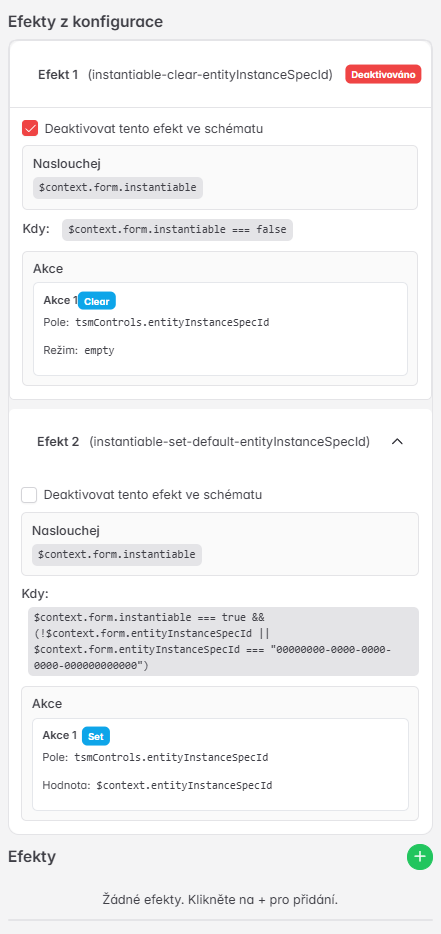
Unlike the user-defined effects described above, configuration effects:
- Cannot be edited — they are defined by the developer in plugin code
- Can only be deactivated (per form) by checking the checkbox in the read-only section
- Are automatically applied to all forms of the given entity type
Each configuration effect uses the same structure as a regular effect (listen, when, do) and supports the same action types and expression context.
Example: Automatic control of the entityInstanceSpecId field
The following two configuration effects work together — the first clears the field when it is not needed, the second sets a default value when it is needed:
Effect 1 — Clear on non-instantiable specification
- ID:
instantiable-clear-entityInstanceSpecId - Listen:
$context.form.instantiable(the "Instantiable" checkbox) - When:
$context.form.instantiable === false - Action: Clear
tsmControls.entityInstanceSpecId(mode:empty)
Effect 2 — Set default instance template
- ID:
instantiable-set-default-entityInstanceSpecId - Listen:
$context.form.instantiable - When:
$context.form.instantiable === trueandentityInstanceSpecIdis empty (blank or contains an empty UUID) - Action: Set
tsmControls.entityInstanceSpecIdto$context.entityInstanceSpecId(default instance template from context)
How both effects cooperate:
User checks "Instantiable" (instantiable = true)
  └─ Effect 2 fires → sets the default instance template

User unchecks "Instantiable" (instantiable = false)
  └─ Effect 1 fires → clears the instance template

User checks "Instantiable" but the template is already filled in
  └─ Effect 2 does NOT fire (the "is empty" condition is not met)
  └─ The user's existing selection is preserved
Deactivating a configuration effect
If a specific configuration effect should not run on a particular form:
- Open the form in the Form Designer
- Go to the Effects tab
- In the "Configuration Effects" section, expand the desired effect
- Check "Deactivate this effect in schema"
A deactivated effect is displayed with an orange "Deactivated" badge and will not execute at form runtime.