Templates
A Template is a content variant of one Layout. The Layout defines the structure and look of the document; the Template supplies the texts that differ between use cases. Business users edit Templates through a form, so they never touch HTML or JSON.
Typical examples:
- one email Layout with the company header and footer, and Templates such as Ticket created, Ticket resolved and Satisfaction survey,
- one contract Layout, and Templates for different products or languages.
Open Templates from Output management → Templates.
Properties
| Property | Meaning |
|---|---|
| Code, Name | Identification. Callers generate documents by the Template code. |
| Layout | The Layout the Template is built on. |
| Form | Optional form for entering test data in a structured way instead of raw JSON. |
| Mnemonic code | For PDF Layouts, the mnemonic used to generate the PDF file name. |
| Labels, Configuration Type | Standard configuration metadata. |
The content fields themselves come from the Form of the Layout (Layout → Basic settings → Form). The values a user enters are stored in the Template.
How content and data are combined
When a Template is rendered, its content and the data from the caller are combined into one input
for the Layout. The Layout reads a content field by its form key at the top level, next to the
caller data: {{headlineName}} from the Template works the same way as {{customer.name}} from the
caller. If the caller data contains a key with the same name, the Template value is used.
The test data of a Template therefore contain only the caller data, for example the customer and the order. The content fields are filled in the Content panel.
Editing a Template
The Template tab has three panels:
| Panel | Content |
|---|---|
| Test data (left) | Sample runtime data for the preview. It is a JSON editor, or the Template's own Form when one is set. |
| Content (centre) | The form of the Layout. Fill in the texts of this Template here. |
| Preview (right) | The Layout rendered with the Template content and the test data. |
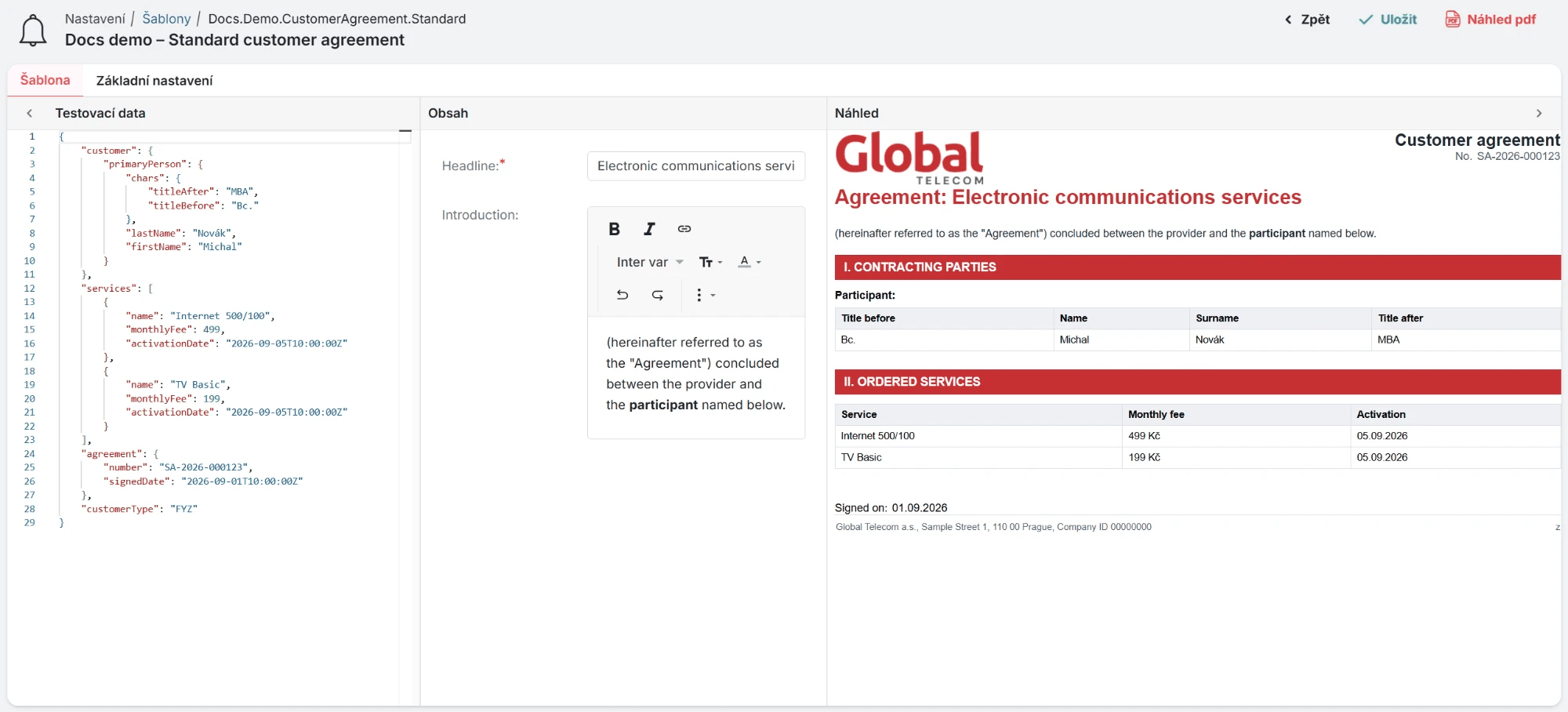
The header offers Save (also Ctrl+S) and Preview pdf. When the Layout is a FILE Layout
with a Word or Excel document, Preview word or Preview excel renders the Template into that
format.
Designing the content form
The Form assigned to the Layout decides what a business user can change. Design it together with the Layout:
- List the parts of the document that vary between Templates: subject, headline, body text, closing sentence, optional sections.
- Create a Form with one field per part. The field keys are the names you
use as placeholders in the Layout, for example
headlineorbody. - In the Layout, add sample values for these keys to the Test data, so the designer offers them in the pickers, and place them with Handlebars components.
- Assign the Form to the Layout in Basic settings → Form.
Choose the placeholder by the kind of field:
| Form field | Placeholder in the Layout |
|---|---|
| Plain text | {{headline}} |
| Rich text that produces HTML | {{{body}}} (triple braces, so the HTML is not escaped) |
| Markdown text | {{{markdown body}}} |
| Checkbox for an optional section | {{#if showSurvey}} … {{/if}} |
If business users start asking for formatting options in the form (colours, font sizes, column layouts), the variation probably belongs in the Layout or in a second Layout. The form should describe content, not design.
Using a Template
Pass the Template code wherever a document is generated:
@formatterPublicService.generate("TicketResolvedEmail", "html", {
    ticket: #ticket,
    customer: #customer
})
- In a Notification Template, select the Template as Output design. See Notification.
- Through the REST API, use the Template code in
POST /api/v1/formatter/{documentTemplateCode}/{format}. See Generating output.