Connect the CLI to an environment
The tsm CLI (tsm) is the command-line tool for configuration packages and scripts. Every tSM environment
serves the CLI and a one-step connection from its own user interface. You need neither a GitLab account nor a
manually created API key.
Prerequisite: your user holds the privilege Um.User.ApiKey.ManageOwn, the same one that is needed to create
your own API key.
Steps:
-
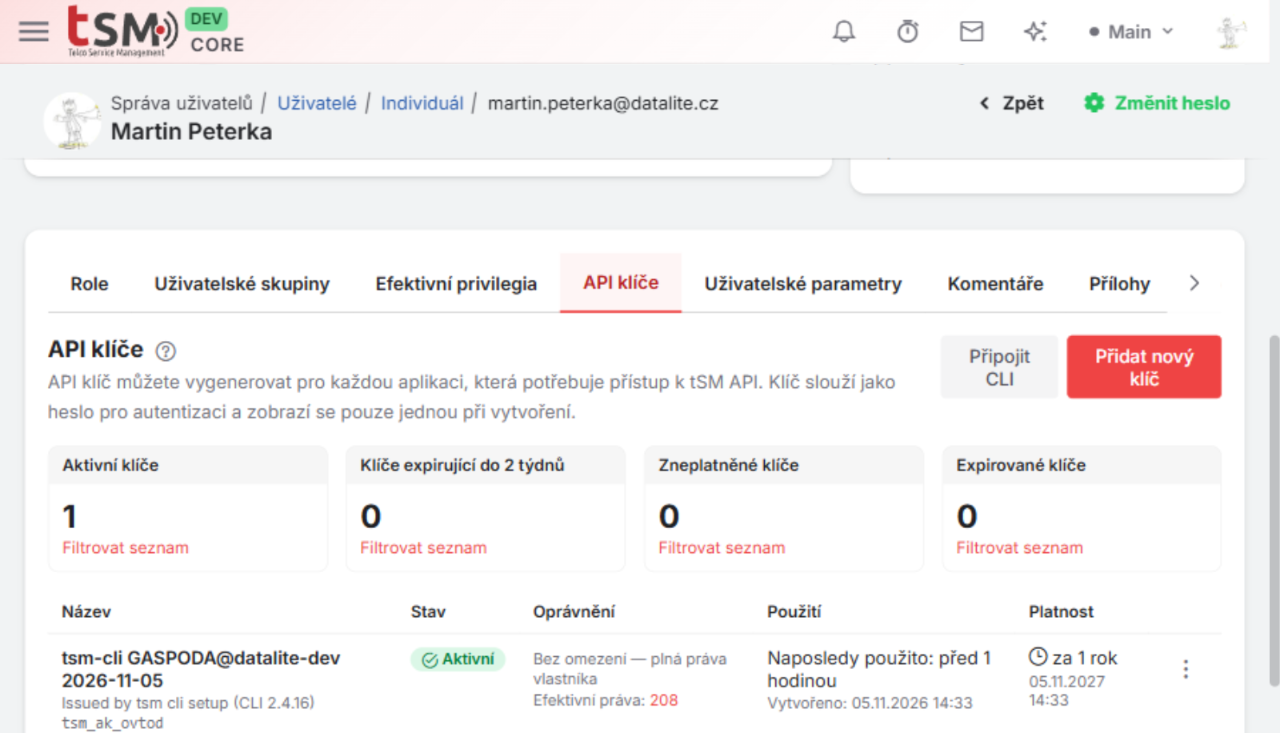
Open your own user detail (User Management → Users → your user) and select the API Keys tab.
-
Click Connect CLI. The Connect tsm CLI dialog opens. It contains commands with the address of this environment already filled in.
-
Install the CLI (skip this step when
tsmis already installed). Copy the command for your operating system and run it in a terminal on your computer:-
Linux / macOS
curl -fsSL https://<environment>/cli/install.sh | TSM_URL=https://<environment> sh && export PATH="$HOME/.local/bin:$PATH" -
Windows (PowerShell)
$env:TSM_URL = 'https://<environment>'; & ([scriptblock]::Create((irm "$env:TSM_URL/cli/install.ps1"))); $env:Path = "$env:LOCALAPPDATA\tsm\bin;$env:Path"
The installer downloads the CLI that matches this environment's release, verifies its SHA-256 checksum and installs it to
~/.local/bin(Linux, macOS) or%LOCALAPPDATA%\tsm\bin(Windows). The command also adds that folder to thePATHof the current terminal; add it to your shell profile or userPATHto keeptsmavailable in new terminals. -
-
Connect to the environment. Run the second command from the dialog:
tsm cli setup https://<environment> <code>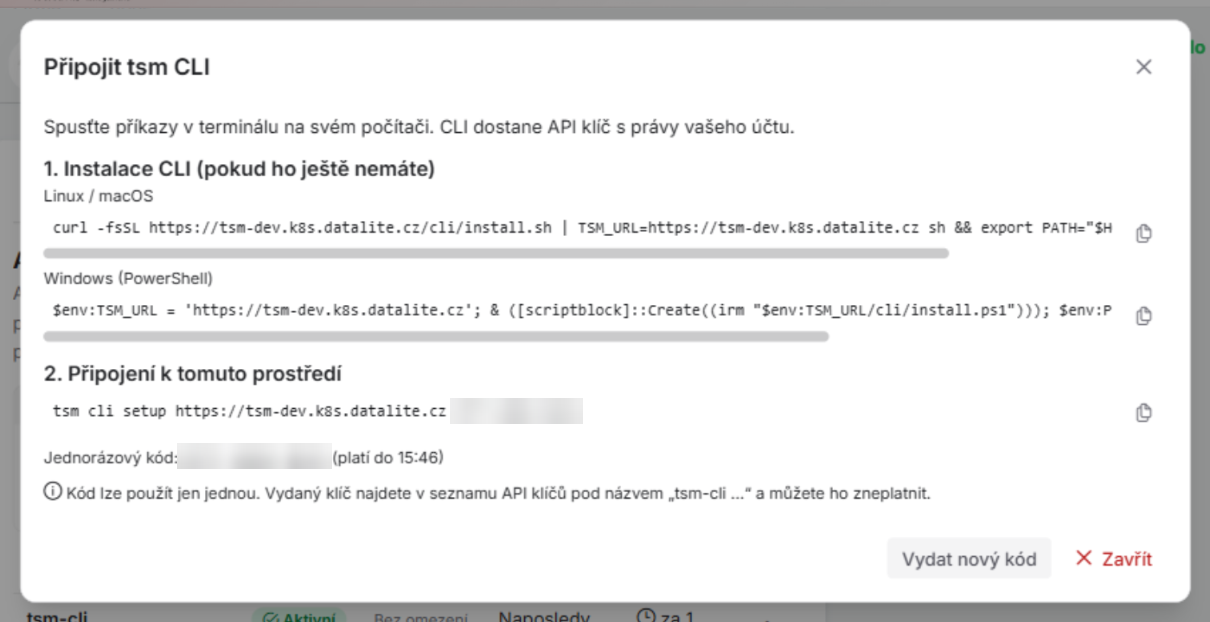
-
Check the connection:
tsm auth whoami
tsm doctor
What tsm cli setup does
- It checks that the CLI is not older than the minimum version the environment requires. If it is, nothing is written and the message shows the installer command of this environment.
- It registers the environment and a context named after the installation (for example
datalite-dev) and makes that context the default. - The environment issues an API key for your user. The key carries your roles and privileges, is valid for 365
days by default and is stored in the operating system's credential store of your computer, not in a file.
The key is listed on the API Keys tab as
tsm-cli <computer>@<context> <date>; revoke it there when you lose the computer. Running the setup again on the same computer replaces its previous setup key.
Setup code
- The code is one-time and expires after 5 minutes by default. The dialog shows the time until which it is valid. Click Issue a new code to get another one.
- A used or expired code is refused (
The setup code is invalid or expired). When the key could not be created, the code stays valid for the rest of its time, so the command can be repeated. - Treat the code like a password until it is used. Anyone who exchanges it gets an API key with your privileges.
Later
tsm cli upgradeupdates the CLI from the environment of the active context, again without a token.- Instead of a code,
tsm cli setup https://<environment> --api-key-stdinconnects with an API key you created yourself on the same tab. - Installing from GitLab with an access token is still supported. See Install and connect.