Form Logic Editor
The Form Logic Editor is a visual view of a form's effects and dynamic JEXL dependencies. It helps you answer questions such as:
- Which fields trigger this effect?
- Which controls can this action change?
- What does a widget event start?
- Does a chain contain a field cycle or recursive
runEffectcall? - Which dynamic widget properties depend on a selected field?
For an introduction to triggers, conditions, and actions, start with Form Effects. For the persisted schema contract, use the Form Effects Reference.
One Schema, Two Editors
The Form Designer provides two synchronized views of the same root-level
effects[] array:
| View | Best suited for |
|---|---|
| Form Designer → Effects | Creating or editing one effect as a linear form, reviewing every property, and deactivating read-only configuration effects |
| Form Logic | Understanding relationships between fields, effects, widget events, actions, script branches, and dynamic properties |
The diagram is not a second workflow format. You can switch between both views without migrating the form or duplicating its logic.
Open the Diagram
Open a form and select the Form Logic tab. The editor has three resizable areas: a palette on the left, the diagram canvas in the center, and the logic inspector on the right.
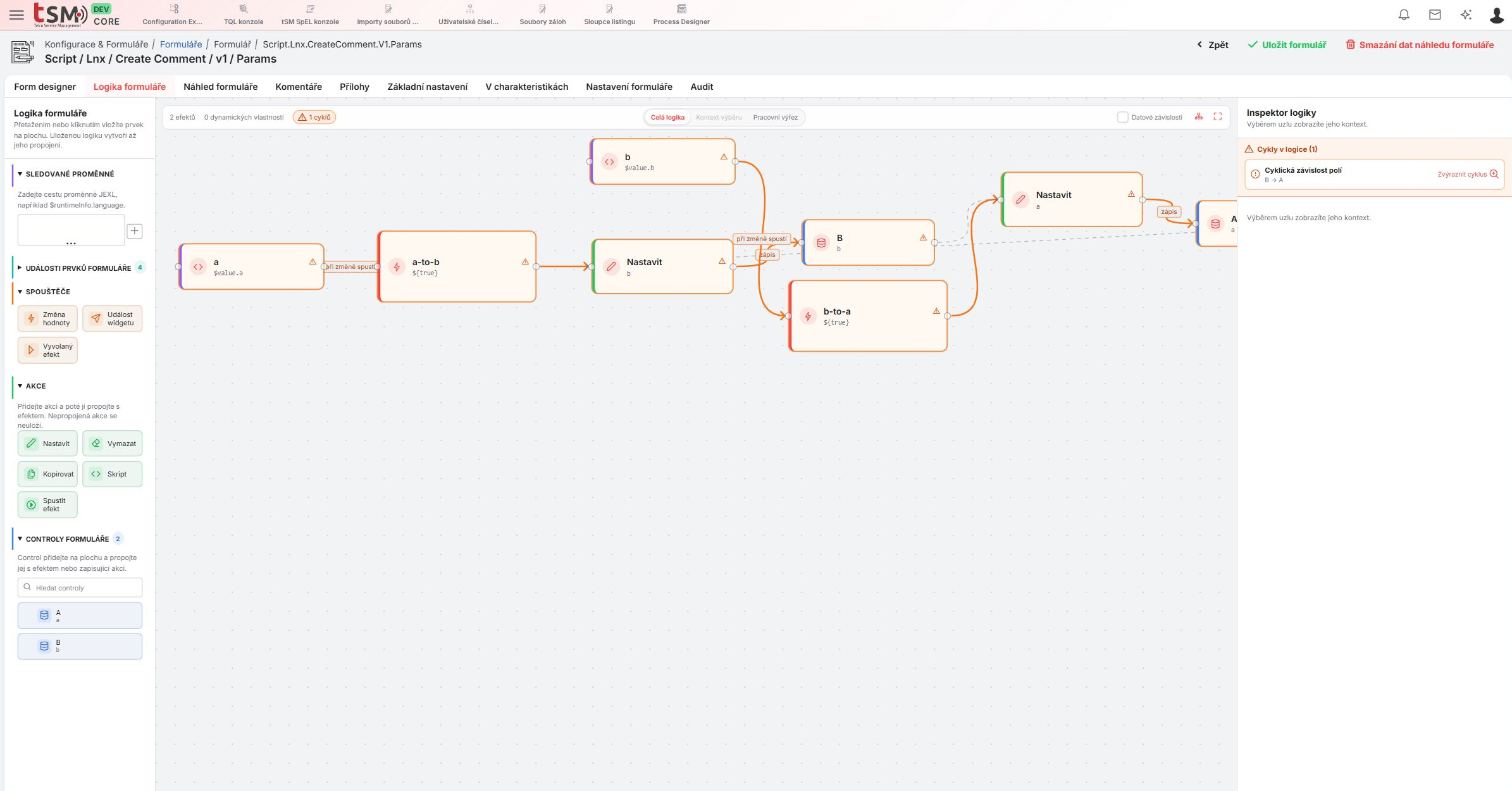
The labels in the screenshot are Czech; the same layout is available in every application language.
| Area | Purpose |
|---|---|
| Palette | Add a trigger, action, form control, watched variable, or widget event |
| Canvas | Connect nodes, follow execution flow, and inspect diagnostics |
| Logic inspector | Edit the properties of the selected node or relationship |
An empty diagram is expected when the form has no root-level effects. Adding a trigger creates a new, initially empty effect. Standalone actions, fields, and events affect the saved schema only after they are connected.
Add Nodes from the Palette
The palette contains only building blocks that are valid for the current form:
- Triggers — Value change, Widget event, and Invoked effect
- Actions — Set, Clear, Copy, Script, and Run effect
- Form controls — Fields discovered from the current schema
- Watched variables — Context paths such as
$runtimeInfo.language - Widget events — Semantic events declared by widgets in the current layout
The Form controls section is hierarchical. Expand an object or inner form to
choose a nested target such as customer.address.street. A control inside a
single fluent-array retains the legacy paths $value.items[$row].price in
listen and items.$row.price in an action. For nested arrays, expand the
palette hierarchy to the desired array level. A field under
groups → groups!.lines uses $value.groups!.lines!.source as its listener
and groups!.lines!.target as an action target. Connecting that field to a
value-change effect sets the effect's scope to groups!.lines automatically.
The scope can also be reviewed or edited in the effect inspector. A widget
event from nested arrays still exposes concrete indexes through
$event.indexes.
Drag a palette item to the required canvas position, or activate it by click or keyboard. A trigger creates an effect. A field, widget event, or action starts as a standalone node.
Adding a node does not automatically modify an existing effect. Connect it to a compatible node deliberately.
Connect the Workflow
Drag from a node port to a highlighted compatible target. The most important connections are:
| Connection | Result in the schema |
|---|---|
| Form control → value-change effect | Adds the prefixed field path to listen |
| Widget event → effect | Creates a widgetEvent trigger with objectPointer and event |
| Effect ↔ standalone action | Adds the action to the effect's do array |
| Set or Clear action → form control | Sets field |
| Copy action → form control | Sets from or to, according to the selected port |
| Run effect action → invoked effect | Sets effectId |
| Effect → invoked effect | Creates and connects a new runEffect action |
A connection from set to a form control identifies where the value is
written; it is not a separate step in do[]. For the order of actions and
their waiting behavior, see Action order and waiting.
The editor accepts either drawing direction for trigger connections between a field or widget event and an effect. The stored schema relationship remains the same.
For a scoped nested-array effect, connect the inner source field to a
value-change trigger, connect a Set action to the inner target field, and
enter a value such as ${$item.source + ' / row ' + $row + ', group ' + $parents[0].row}.
The listener remains a $value path. $item and $parents are available in
the expression editor, not as watched variables. The source and target are
different leaf controls, so this connection does not create a field cycle.
Edit a Selection
Select a node to open its settings in the right inspector. The inspector reuses the same Effects and Expressions editors as the rest of the Form Designer, so advanced properties remain available without leaving the diagram.
Selecting an item narrows the inspector to the relevant context:
- an effect shows its metadata, trigger, condition, and actions;
- an action shows only the properties supported by that action type;
- a widget event shows its source widget, event name, and payload suggestions;
- an expression shows its JEXL and schema location;
- a relationship shows its source, target, and available delete action.
Deleting a relationship removes only that connection. Deleting an effect, action, or dynamic-property node removes the corresponding schema item. The Delete key is also supported for a selected deletable item.
Choose the Visible Scope
Use the scope switch above the canvas:
| Scope | Contents |
|---|---|
| All logic | The complete graph |
| Selection context | The selected node and its related subgraph |
| Workspace | Only newly created nodes and branches explicitly added to the working view |
For example, selecting a field in Selection context shows effects that listen to or write that field and expressions that read it. Without a selection, this scope is disabled. Selecting another node recalculates the context immediately.
Workspace changes only the working view. Hiding a node from the workspace does not remove it from the form schema.
Arrange the Diagram
The toolbar provides:
- Data dependencies — show or hide non-executable JEXL dependency edges;
- Auto layout — arrange the visible graph automatically;
- Fit diagram — fit the visible nodes into the canvas.
Dragged positions are stored separately in
settings.formLogicDiagram.nodePositions. They affect only the diagram layout,
not the form's runtime behavior.
Direct and Derived Relationships
Not every displayed edge is stored as an independent schema property:
| Relationship | How it is represented |
|---|---|
| Value-change or widget-event trigger | Directly stored in listen or trigger |
runEffect connection | Directly stored in effectId |
| Set, Clear, or Copy write edge | Derived from field or to |
| JEXL data dependency | Derived from a referenced value in an expression |
| Script success or error branch | Derived from successDo or errorDo |
Edit a derived relationship through its action or expression in the inspector.
Deleting a directly editable edge removes the associated listen, trigger,
or effectId relationship.
An edge from $value.customer.id to a set.value expression shows that the
expression reads that value. The effect reruns on the field's change only when
the field is also included in listen.
Dynamic Widget Properties
JEXL in a widget attribute is also form logic. The diagram projects dynamic properties as expression nodes and connects referenced form fields with a visually distinct data-dependency edge.
Use the inspector's Expressions tab to search all expressions, see their schema locations, and open the corresponding editor. These edges describe data flow; they do not execute actions.
Diagnostics
The editor analyzes executable dependencies whenever the schema changes:
- A field dependency cycle is a warning. It can still be saved, but the highlighted path should reach a stable value at runtime.
- Direct or indirect
runEffectrecursion is an error and blocks saving until the recursive chain is removed.
Select a reported cycle to focus its nodes and edges. The cycle counter and the inspector list every detected path. The original Effects view displays the same cycle diagnostics.
The Effects inspector can also warn when a $value path used by when,
set.value, or scriptData is not covered by listen. This is not a graph
cycle: it means the expression reads a value whose change may not rerun the
effect.
The Form Runtime Debugger keeps the transient expression context for each
retained effect run. Select an effect frame to expose $trigger in the JEXL
console alongside any available $event, $payload, $input, and $response.
Evaluating $trigger, $trigger.origin, or $trigger.initiator uses the
snapshot captured for that selected run, including asynchronous continuations;
it does not use metadata from a newer form change.
The $trigger context is available in tSM UI 2.4 builds that include TSM-4228.
Older 2.4 deployments do not capture it in effect runs or expose it in the
debugger.
Configuration Effects
Effects supplied by a base form or plugin configuration are read-only. They are visible in the Effects editor inside the inspector and in the original Form Designer, but they are not copied onto the editable canvas as user-owned effects.
A form can deactivate a configuration effect from the read-only Effects section. See Configuration effects for the persisted schema representation and merge behavior.